Getting started
BACManager is a Windows tool for buildings where BACnet and Modbus meet. It discovers BACnet/IP and MS/TP devices, browses and writes their objects with the priority array, edits Schedule and Calendar objects, subscribes to COV and exports EDE — and in the same window reads Modbus RTU and TCP meters and drives. Dashboards, a Historian, alarms, tags with Structured Text and a BACnet–Modbus gateway are included. Everything runs locally.
| Licence | What it includes |
|---|---|
| BACManager — $149 | Everything in this manual: BACnet explorer and editors, BACnet simulator, Modbus tools, dashboard editor, Historian, alarms, gateway, Siemens S7 (beta), Runtime package export. |
| Runtime — $39 / machine | Runs a dashboard package full screen on a panel PC with live BACnet and Modbus, alarms and trends; no editor, scanner, schedule editor, gateway or simulator. See Runtime edition. |
Start the built-in BACnet simulator, tick localhost (sim) in the BACnet tab, Open, Discover — everything in this manual can be tried on it.
The main window
The tabs are, in order: BACnet (the explorer, opened at start), Slave sim (the BACnet simulator), then the Modbus tools Registers, Chart, Write, Serial Monitor, Test Center, Slave Scan, Address Scan, Slave, and the shared tools Dashboard, Tags, History, Alarms, Gateway. The toolbar above them belongs to Modbus: Connect, the poll window settings, display options, Workspace, Templates, Print and License. While the BACnet tab is open, the Modbus TX/RX log is hidden and BACnet has its own activity log.
The tray icon offers Keep running when window is closed and Start with Windows, for a gateway or alarms that must run unattended. On quit, BACManager asks whether to save the workspace.
BACnet/IP connection
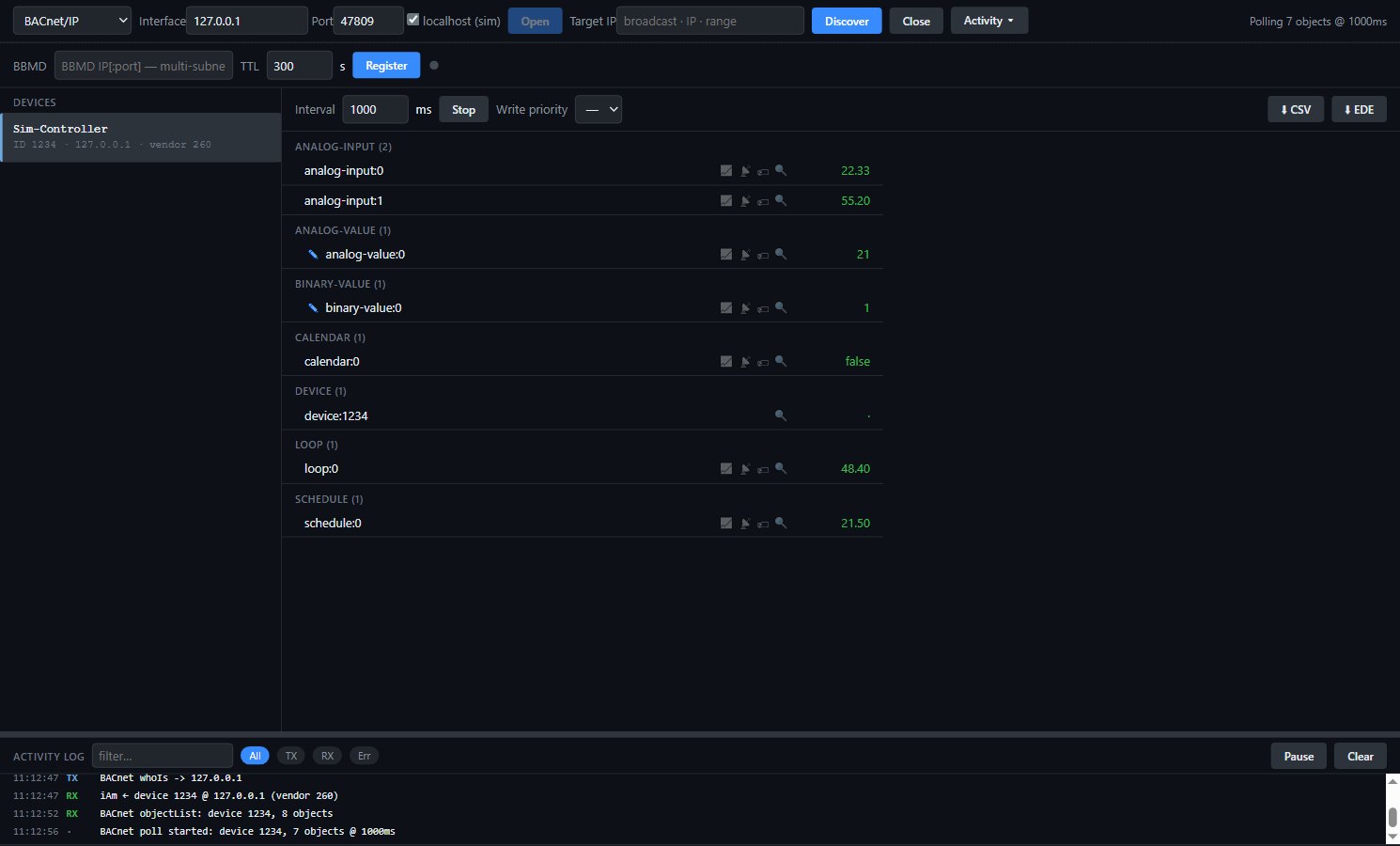
- Choose the datalink BACnet/IP.
- Interface: the IP address of the network card to use, or empty for all interfaces. Port: 47808 (0xBAC0) unless the site uses another.
- Press Open. The status on the right shows “Client open (port 47808)”; Close closes it. A dropped client is retried (“Connection lost — retrying…”).
localhost (sim) sets Interface 127.0.0.1 and Port 47809, so the client can talk to the simulator on the same PC. The interface, port, poll interval, COV subscriptions and BBMD registration are remembered for the next start.
Only one program can own UDP 47808 on an interface. If another BACnet tool or a BMS runs on the same PC, close it, or open BACManager on a different interface.
BBMD & foreign device registration
Who-Is is a broadcast and stops at the router. To discover devices on another subnet, register BACManager as a foreign device with that network’s BBMD:
- Open the client (BACnet/IP).
- Enter the BBMD address (
IPorIP:port, port 47808 by default) and the TTL in seconds (default 300, minimum 30). - Press Register. The dot turns green and the status reads “FDR: registered @ …”; a refusal shows the BVLC result code, a timeout means the BBMD never replied.
- Run Discover — broadcasts now reach the remote subnet.
The registration is renewed automatically at 75 % of the TTL, and re-applied the next time the client opens. Unregister ends it. Registration applies to BACnet/IP only; the row is hidden on MS/TP. Background: BBMD & foreign device registration explained.
MS/TP (RS-485)

- Connect a USB-RS485 adapter to the MS/TP trunk and choose the datalink MS/TP (RS-485).
- Serial: the COM port (↻ refreshes the list if the adapter was plugged in later).
- Baud: 9600, 19200, 38400 (default), 57600, 76800 or 115200 — the same as the trunk.
- MAC: this station’s address, 0–127 (default 99). It must be unique on the segment.
- Open, then Discover.
BACManager joins the token ring as a master node (it answers Poll-For-Master and passes the token; Max Master 127), so it can send confirmed requests: browse, write, COV, schedules and EDE work as on BACnet/IP. Discover sends one broadcast Who-Is on the segment; Target IP and BBMD do not apply. MS/TP and Modbus RTU use separate COM ports, so both can run at once. More: BACnet MS/TP over RS-485.
Discovering devices
Target IP decides where Discover sends Who-Is:
| Target IP | Who-Is sent as |
|---|---|
| empty | a broadcast on the local subnet (and through the BBMD when registered) |
192.168.10.25 | a directed Who-Is to one address, e.g. across a router |
192.168.10.1-254 or 192.168.10.0/24 | a sweep of up to 256 addresses, one directed Who-Is each |
Each I-Am adds the device to Devices: name (read after discovery), “ID … · address · vendor …”, sorted by device instance. The activity log shows every “iAm ← device …”.
Devices behind a router. A device that answers through a BACnet router — MS/TP controllers behind an IP-to-MS/TP router, or the indoor units a VRF controller such as a Daikin iTM presents on its own network — shows “net N” in its line. BACManager keeps the network and address the I-Am came from and sends every request for that device through the router, so it is browsed, polled and written like any other. More on finding devices: BACnet scanner.
Objects & polling
Click a device to read its object list. Objects are grouped by type (“analog-input (3)”) and sorted by instance. Each object’s name is read after the list and shown in its row, so a points list can be read by its names. Each row shows the present value and, on the right:
- click the row — read the present value now;
- ✎ Write value — on commandable types (AO, AV, BO, BV, MSO, MSV);
- 📈 Log to History — start or stop logging the value;
- 📡 COV subscription — live updates without polling;
- 🏷 Add as tag — a tag for dashboards, alarms, scripts and the gateway;
- 🔍 Browse / read / write all properties — the property browser, or the grid editor for schedules and calendars.
The bar above the list: Interval (ms, minimum 200) and Poll / Stop read the present value of every object with ReadPropertyMultiple; Write priority (— or 1–16) is used by ✎ writes; ⬇ CSV and ⬇ EDE export the list. Selecting another device stops the poll.
Gap (ms per property) slows down every request to the selected device: after a request BACManager waits the gap times the number of properties it carried before it sends the next one — poll, writes, tag reads, Refresh and the object list alike. 0 (the default) sends at once. Use it for a device that asks for a minimum time between requests: a Mitsubishi AE-200 asks for 200 ms per property. The gap is kept per device, remembered for the next start and saved in the workspace.
Activity ▾ opens the decoded activity log (Who-Is, I-Am, reads, writes, COV, exports) with a filter box, All/TX/RX/Err chips, Pause and Clear; it keeps the last 600 entries.
Property browser
🔍 on an object opens its properties. Read common set reads the properties that matter for that object type — name, type, description, present value, units, status flags, event state, reliability, out-of-service, limits, COV increment, and for commandable objects the priority-array (87) and relinquish-default (104); for the device object the vendor, model, firmware, protocol revision, APDU and segmentation settings.
Any other property: choose it in — property — or type its number in ID, then Read. To write, enter the value (empty = NULL), leave the type on auto or pick Real, Unsigned, Signed, Boolean, Enumerated or String, and press Write; the value is read back at once. A property the device does not have shows “error” — hover for the reason.
A Loop’s setpoint is property 108, its process value (controlled variable) 21, the output is the present value 85, and P / I / D are 93 / 49 / 26. Type the ID to read or write them.
Writing & priorities
Commandable objects (AO, BO, MSO, and AV/BV/MSV where the device makes them commandable) keep a 16-slot priority array; the present value is the highest-priority slot that is not NULL, or the relinquish default.
- Set Write priority in the bar (8 = Manual Operator is the usual choice), then ✎ on the row and enter the value.
- Relinquish: leave the value empty — NULL is written at that priority and the slot is released.
- With priority “—” no priority is sent and the device applies its default (normally 16).
- Properties other than the present value (e.g. a Loop setpoint) are written without a priority.
- Tags, dashboard elements and gateway rows that write BACnet carry their own priority, 8 by default.
| Priority | Typical use |
|---|---|
| 1–2 | Life safety |
| 3–5 | Critical equipment control |
| 6 | Minimum on/off |
| 8 | Manual operator |
| 9–15 | Available, local scheduling |
| 16 | Lowest — many controllers’ own logic |
To see who is holding a point, read property 87 in the property browser. More: BACnet priority array explained.
COV subscriptions
📡 on a row subscribes to Change-of-Value notifications: the device sends the value when it changes, and the row updates without polling. Click again to unsubscribe. BACManager subscribes for unconfirmed notifications with a 300 s lifetime and renews at 75 % of it; subscriptions are remembered and restored when the device announces itself again (“COV subscribed … (restored)”).
Schedule & calendar editor
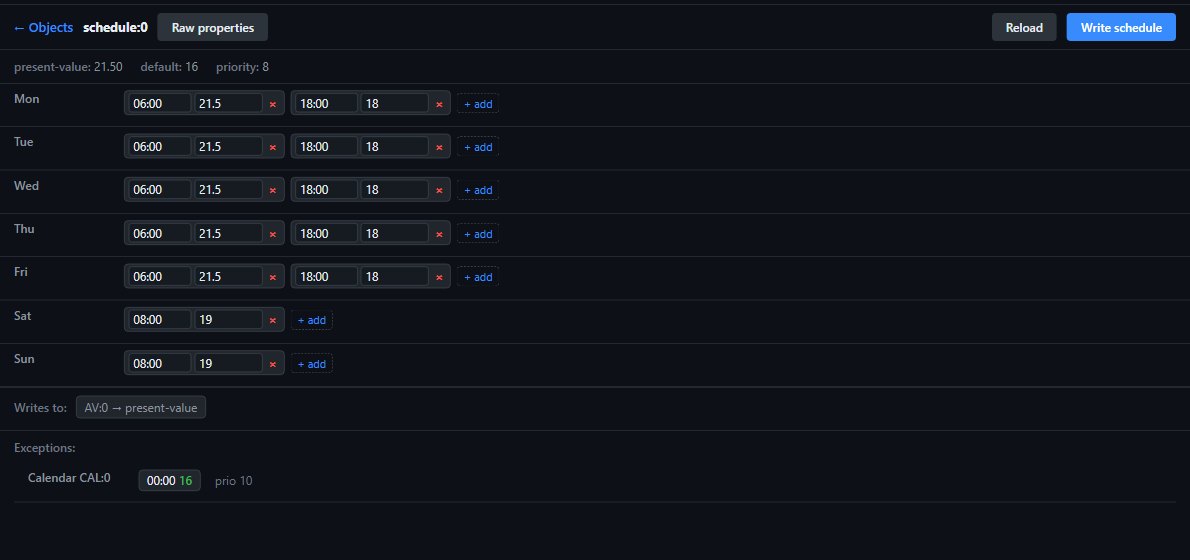
🔍 on a schedule object opens the weekly grid instead of the property list. The line above shows the present value, the schedule default and the priority it writes with.
- Each day lists time/value pairs: edit them in place, × removes one, + add adds one. Times are
HH:MM. - Write schedule writes the weekly schedule to the device; Reload reads it again; Raw properties switches to the property browser.
- Writes to (the object properties the schedule commands) and Exceptions (dates, week-n-day entries and calendar references with their priority) are shown read-only.
A calendar object opens as a list of entries: specific dates (yyyy-mm-dd, an empty part means “any”), date ranges (from … to, e.g. a summer shutdown, or 1–15 August of every year with the year left empty) and week-n-day patterns (month, week, weekday). + date, + range and + weekday add entries, × removes one, Write calendar writes the list.
EDE & CSV export
With a device selected, ⬇ EDE writes its object list as a BACnet EDE 2.3 file (keyname, device instance, object name, type and instance, description, default present value, min/max, commandable, high/low limit, unit code…) that other BACnet tools import, and ⬇ CSV writes a plain list (device, type, instance, name, description, present value, units). Each object is read during the export; the status counts them.
BACnet simulator
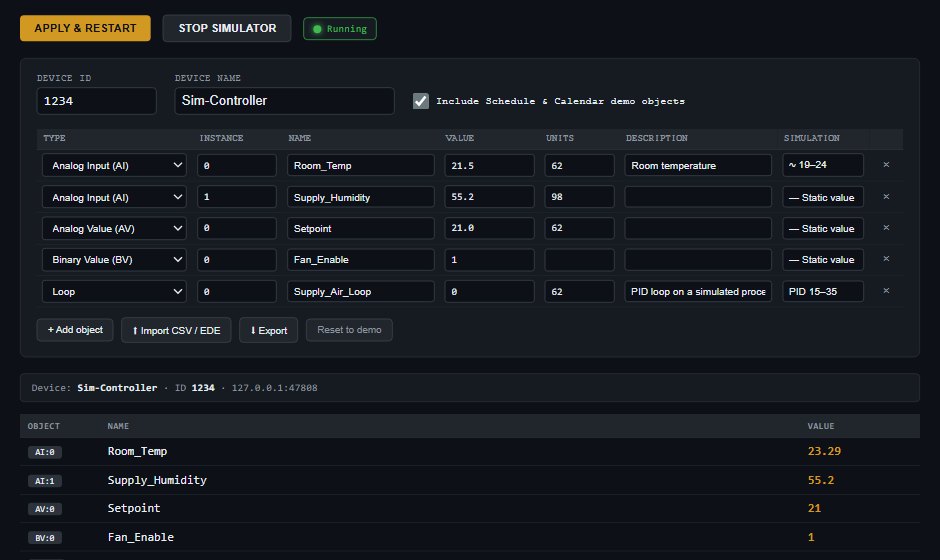
The Slave sim tab runs a BACnet/IP device on this PC (127.0.0.1, port 47808) for testing the explorer, dashboards, the gateway or a BMS without hardware.
- Set the Device ID and Device name; tick Include Schedule & Calendar demo objects for a demo Schedule and Calendar.
- Edit the object table: type (AI, AO, AV, BI, BO, BV, MSV, Loop), instance, name, value, units (BACnet unit code, e.g. 62 = °C, 98 = %RH) and description. + Add object, ⬆ Import CSV / EDE, ⬇ Export, Reset to demo.
- Click a Simulation cell: Static value, Counter ↑/↓, Sine wave, Random, Ramp, or PID loop (simulated process) on a Loop object — a PI controller drives a first-order process between Min and Max, with Period as its time constant; writing the Loop’s setpoint (108) makes the process follow.
- Start simulator (later Apply & restart). In the BACnet tab tick localhost (sim), Open, Discover.
The simulator answers Who-Is, ReadProperty, ReadPropertyMultiple, COV and WriteProperty with a priority array on the present value. Besides name, present value, description and units it answers the properties every object has — object type, status flags, event state, reliability, out-of-service, and for commandable objects the live priority array and relinquish default — and the device object’s vendor, model, protocol and APDU properties, so the property browser’s Read common set works on it.
Modbus tools
The Modbus tabs are the same as in ModbusManager, so the ModbusManager manual describes them in detail. In short:
- Connect: Modbus TCP (IP, port 502), RTU (COM port, baud, parity, data and stop bits) and further transports; auto-reconnect. See Connecting.
- Poll windows & Registers: FC01–FC04 blocks with their own slave ID and interval; every value as decimal, hex, binary, 32- and 64-bit; value names, conditional colours, word order, CSV export, snapshot and PDF report.
- Write (FC05, 06, 16, 22, 23), Chart, Serial Monitor, Test Center (incl. FC08, FC43/14).
- Slave Scan with Auto-detect, Address Scan, and the Slave simulator with simulations and the Link panel.
Tags & Structured Text

Tags name values so dashboards, alarms, the Historian, the gateway and scripts can use them. Types: Register (Modbus, with data type, word order, Scale × and Offset +), Internal, Siemens S7 (beta) and BACnet:
- BACnet tag: Device ID, Object (AI, AO, AV, BI, BO, BV, MSI, MSO, MSV or Loop), Instance, Property (85 = present value; for a Loop 21, 108, 93, 49, 26) and the write Priority (8 by default). The list shows it as
BAC [1234 analog-value:0]. - 🏷 Add as tag in the object list creates a present-value tag in one click.
- A BACnet tag is read on its own: every device a tag reads is polled while the client is open and the device has answered, so a workspace shows live values without pressing Poll. Poll in the BACnet tab takes over that device’s poll and Stop hands it back. Extra properties such as a Loop’s 108 and 21 are read in the same poll.
- Refresh (s) writes the tag’s last written value again every that many seconds (0 = off, 10 at the least) until it is relinquished — for controllers that drop a BMS value not written again in time, like a Lennox CORE’s five-minute rule. It applies whoever wrote the value — a dashboard control, the gateway or MQTT; the list marks such a tag with ↻.
The Script Editor (Structured Text) computes with tags: :=, arithmetic, comparisons, AND OR NOT, IF/ELSIF/ELSE/END_IF, FOR … TO … DO … END_FOR and (* comments *), run once or as a loop (interval ≥ 100 ms). Writing a BACnet tag from a script writes the device with the tag’s priority.
Dashboard & PID faceplate
The dashboard editor is the one from ModbusManager Pro — pages and popup pages, Classic and Modern themes, 57 elements in Standard Objects, Basic, Solar/Energy, Process, HVAC (fan, damper, coils, filter, AHU, thermostat, humidifier, heat exchanger…), Input/Data and Charts, undo/redo, Runtime mode and full screen. The ModbusManager manual describes the editor in detail. BACManager adds:
- Source → BACnet in an element’s properties: Device ID, Object, Instance (and Property for a Loop: output, process value, setpoint, P, I, D). The device must be polled or COV-subscribed in the BACnet tab or by a gateway source to show a live value.
- PID Loop faceplate with a BACnet Loop object box: enter the Device ID and Loop instance and press Bind PV, SP, OUT, P/I/D — PV is bound to property 21, SP to 108, OUT to 85, P/I/D to 93/49/26. Auto/Manual is bound by hand if the controller exposes it.
- In Runtime the operator changes the setpoint (written to property 108) after a confirmation.
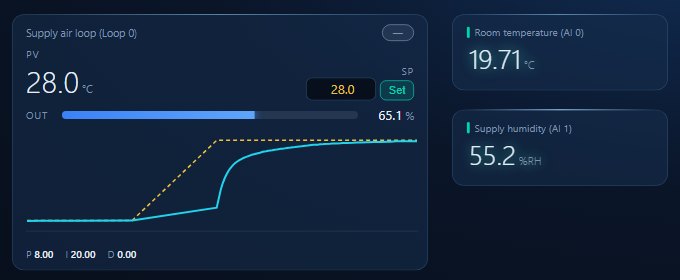
Write elements write only in Runtime and only after the element has read a value. A BACnet write uses priority 8 unless the tag says otherwise.
History & alarms
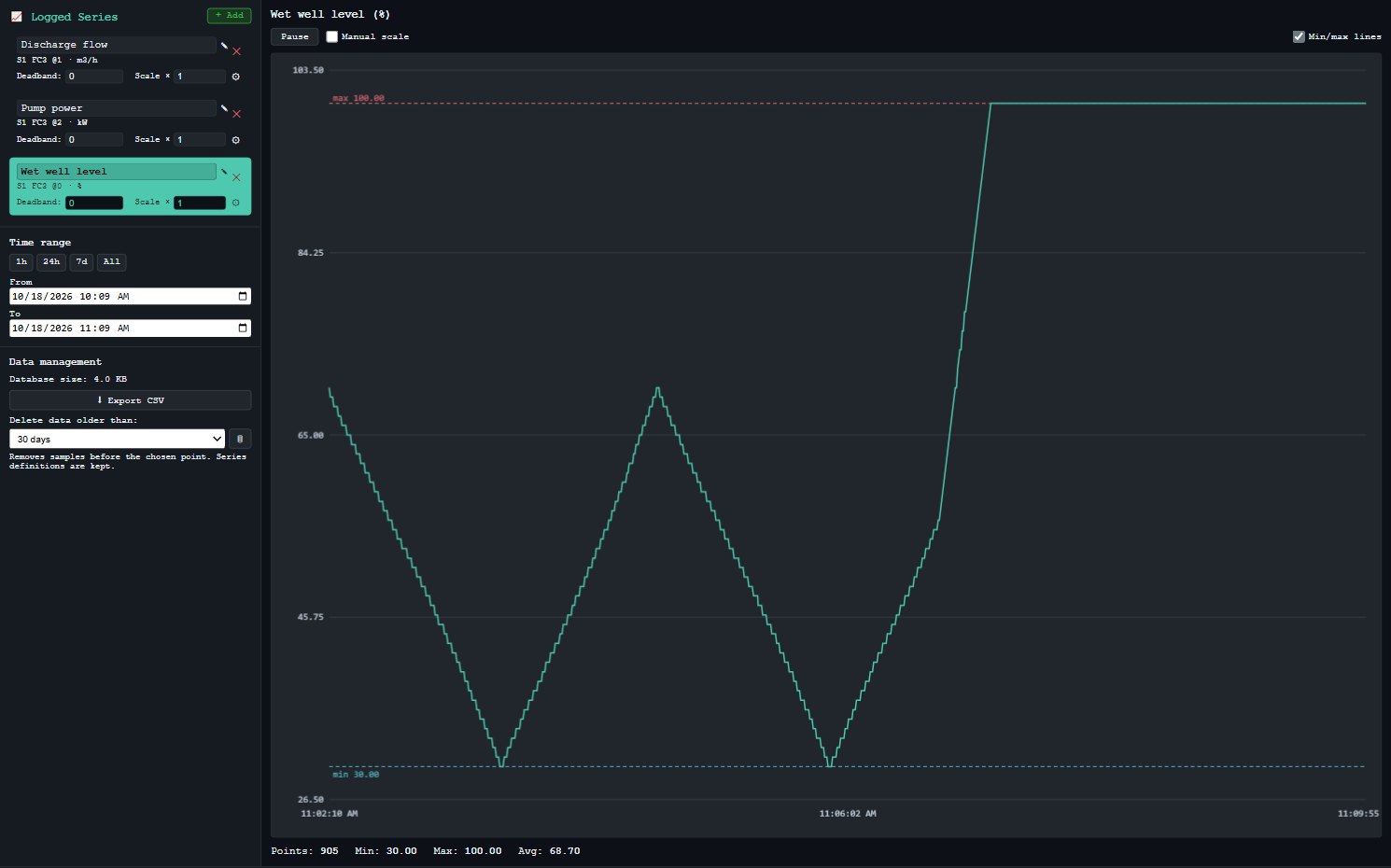
History: 📈 on a BACnet object (or a tag, or a Modbus register) starts logging; the series list sets a Deadband and a display scale. Choose 1h/24h/7d/All or a date range, zoom by dragging, export CSV, and delete old data. Values are stored as they arrive (at the poll rate or on COV).
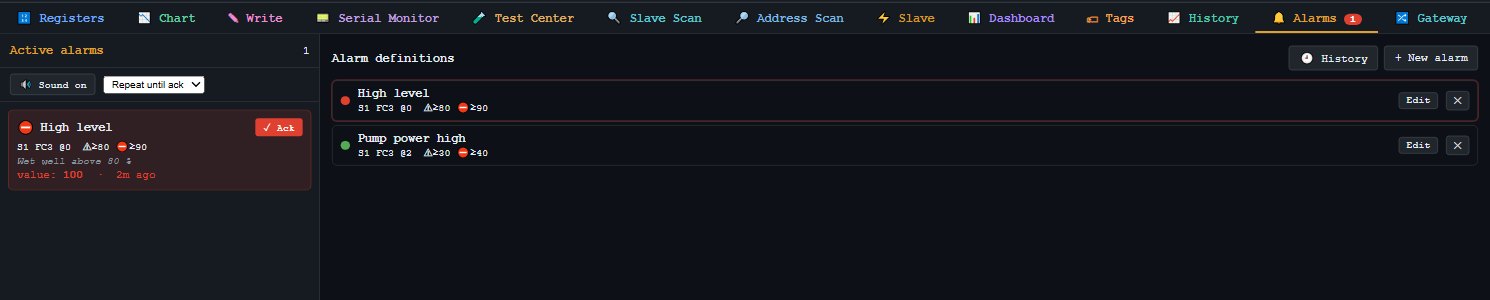
Alarms: + New alarm with source BACnet (Device ID, Object, Instance), a tag or a Modbus register; condition (>, <, ≥, ≤, =, ≠, between, outside), warning and critical limits, hysteresis and delay. Active alarms are acknowledged in the tab or from a dashboard Alarm Banner / Alarm List; sound can be muted. These are BACManager’s own alarms on values — BACnet event notifications from devices are not received (see Not supported yet).
Gateway

The gateway connects the two worlds in both directions at once. Each mapping row has its own source and destination:
- Sources (endpoints): + TCP and + RTU Modbus devices, + BACnet (a device already discovered in the BACnet tab; the row sets object type, instance, property and the write priority, 8 by default), + Siemens S7 (beta) and + Tags.
- Destinations: the Modbus map — a Modbus TCP slave (PLC side, port 502) any PLC or SCADA polls; a BACnet obj on the gateway’s own BACnet/IP device; an S7 DB (beta) a Siemens PLC reads with GET; or MQTT (below).
- BMS side: tick Expose mapping rows as a BACnet device, set the Device ID (default 1001), name and BACnet/IP port (47808). It runs as a separate process, so it can use 47808 while the BACnet tab’s client uses another port. Rows with Dest “BACnet obj” become AI, AO, AV, BI, BO, BV, MSV or Loop objects with an instance and optional units. A BMS discovers it with Who-Is and can read, subscribe to COV and — for rows in write mode on commandable types — write with priority; the write goes on to the source device.
- Mode read (source → destination) or write (destination → source); data type, scale and offset per row.
Start gateway; Start gateway automatically plus the tray options keep it running unattended. Rows and endpoints import from and export to CSV, and the configuration is saved with the workspace. The S7 server needs its Allowed PLC addresses list — empty means no PLC can connect. More: BACnet ↔ Modbus gateway.
MQTT and Home Assistant
A third destination, MQTT, publishes a row’s value to an MQTT broker — Home Assistant’s Mosquitto add-on or any other — as <base topic>/<topic>/state. Any source works: a BACnet object, a Modbus register, an S7 address or a tag. In the MQTT panel set the broker, port (1883; 8883 with TLS), user, password and base topic; per row set the topic (empty: from the name), unit and Home Assistant device class.
With Home Assistant discovery on, the rows appear in Home Assistant by themselves under one device: values as sensors (BI, BO and BV as binary sensors), write rows as numbers or switches whose commands go to the object at the row’s write priority. Energy rows are growing totals for the Energy dashboard, and the device shows as unavailable when the gateway stops. The password stays on this PC: it is never written to a workspace or a CSV export.
Siemens S7 (beta)
BACManager reads and writes Siemens S7-1200/1500 (and S7-300/400) PLCs over PUT/GET, the same way as ModbusManager Pro: permit PUT/GET in the CPU, turn off optimized block access for the DBs, add the PLC in Tags → Siemens S7 (beta)… (IP, rack 0, slot 1; slot 2 for S7-300/400), then use S7 tags, the dashboard’s S7 source or an S7 gateway endpoint. Addresses look like DB1,REAL4, DB1,X12.0, MW2. It is released as beta, tested against a simulated PLC. Guide: S7-1200 / S7-1500 PUT/GET from a PC.
Runtime edition
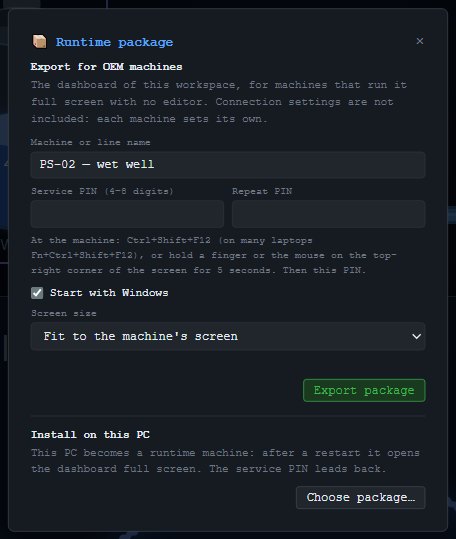
- In BACManager, build the dashboard and press 📦: machine or line name, a 4–8 digit Service PIN, Start with Windows, Fit to the machine’s screen or Actual size, Export package → a
.mmrtfile. Network settings are not in the package. - On the panel PC (same installer): 📦 → Choose package…, restart. It opens the dashboard full screen, always dark, with finger-sized controls.
- The kiosk opens BACnet with this PC’s saved settings, sends Who-Is every 30 s until each device its tags use has answered, and polls them; Modbus and S7 connect too.
- Service: Ctrl+Shift+F12 or hold the top-right corner 5 s, then the PIN (five wrong PINs lock for a minute). The menu sets the BACnet network (BACnet/IP interface, port, Who-Is target, or MS/TP port, baud, MAC), the Modbus connection, S7 PLCs, installs another package, the licence, Open the editor (BACManager licence or trial only), Make this an ordinary PC and Close the application.
A Runtime key (BACR-, $39 per machine) runs packages without limit; ordered by e-mail to license@bacmanager.com with the Machine IDs. Without a key the PC runs on the 14-day trial, then 2 hours at a time before polling stops. Details: BACnet HMI Runtime.
Workspaces & templates
💾 Workspace saves one JSON file to Documents; the folder button opens one. It holds the Modbus poll windows and their settings, the dashboard, tags and script, the Historian’s logged series, the slave blocks, the BACnet simulator configuration and BACnet panel state, the BACnet request gaps, and the gateway configuration (opening a workspace asks before applying it). Connection settings stay with each PC; alarm definitions and the S7 PLC list are kept by the application. ModbusManager Pro and BACManager open each other’s workspaces. Templates load ready Modbus poll windows for common devices.
Other device numbers. A workspace names BACnet devices by instance. When it reads devices that are not in the BACnet tab’s list, BACManager asks which discovered device takes each one’s place (with its own Discover button) and moves every point over at once: tags, dashboard elements, the script, logged series, gateway rows and endpoints, PID loops and request gaps. Keep leaves a number as it is; two workspace devices cannot both go to one. The gateway’s own BACnet device and the simulator keep their numbers, and a Runtime kiosk is never asked. With nothing discovered the workspace loads as before and a hint names its devices. The free workspaces on the device guides open this way.
Licensing
- Trial: 14 days with every feature, from the first start; reinstalling does not reset it.
- Machine ID: 🔑 License in the toolbar shows it with a copy button.
- Buy: on bacmanager.com enter the Machine ID and e-mail; the key (
BACP-…) is e-mailed after checkout. Paste it in the licence window and press Activate license. Runtime keys startBACR-. - A key is perpetual and bound to one machine; to move it to a new PC write to support@bacmanager.com. Terms: licence terms.
Languages: English, German, Spanish, French, Portuguese, Ukrainian, Chinese, Polish and Estonian, from the flag in the toolbar. A few BACnet-specific labels and prompts are in English only.
Not supported yet
So you know before you need it, BACManager 1.4.6 does not:
- use BACnet/SC (secure connect) — only BACnet/IP and MS/TP;
- read Trend Log objects (they are listed, but ReadRange is not implemented);
- receive BACnet event or alarm notifications, or acknowledge device alarms;
- send DeviceCommunicationControl, ReinitializeDevice or TimeSynchronization;
- discover routers (Who-Is-Router-To-Network) or set Who-Is instance limits;
- edit exception schedules (they are shown).
Troubleshooting
| Symptom | Check |
|---|---|
| Discover finds nothing | The client is open on the right interface; the devices are on the same subnet (otherwise a directed Target IP or a BBMD); Windows Firewall allows BACManager on UDP 47808; no other program holds the port. |
| Devices behind a router | Register with the BBMD, or use Target IP with the device’s address or a range. MS/TP devices behind an IP router answer for themselves and show “net N”. |
| A device skips answers or reports it is busy | Set a Gap for it in the BACnet tab (the maker’s minimum time between requests, per property). |
| MS/TP: no devices | Baud matches the trunk, the MAC is unique and within the masters’ Max Master, A/B polarity and termination, the adapter’s COM port. |
| Every value shows “error” while polling | The device may not support ReadPropertyMultiple; read single values by clicking the rows. |
| A write is refused | The object is not commandable, the value type is wrong (set the type in the property browser), or a higher priority holds the point — read property 87. |
| A dashboard value stays empty | The BACnet client is open and the device has answered Who-Is; bind the element to a BACnet tag (read on its own) or poll the device on the BACnet tab. A workspace from another site may name other device numbers — open it again after Discover. Dashboards write only in Runtime. |
| Gateway BACnet server not visible to the BMS | Expose mapping rows is ticked, the gateway is started, the device ID is unique on the network, rows have Dest “BACnet obj”, and the firewall allows UDP 47808. |